

This guide explains how to download media from Amazon S3 using the CyberDuck client.
There are many other S3 client applications you can use also, such as:
Before you start
-
You will need to have configured your CyberDuck profile. See this page for more details.
-
You will need to know the drive letter for your S3-backed storage. Your Lens administrator or support team will be able to provide you with this.
Common issues and caveats
-
Avoid renaming folders (prefixes) with lots of files within them
-
If you get access denied errors, contact your Lens administrator or support team
-
Files not showing in CyberDuck: This can happen when uploading large amounts of files or when renaming folders with thousands of files within it.
-
Its recommended to not unzip large ZIP archives directly to the S3-backed storage
Adding media to Amazon S3
If the media is not already stored on the Amazon S3 volume, then it will need to be moved there first. To do this:
-
Connect to a workstation via Lens
-
From the start menu, select the Folder Explorer button

The Windows start menu -
From the left sidebar, select the
This PCitem -
In the
Network locationssection, find your drive letter and double click it to open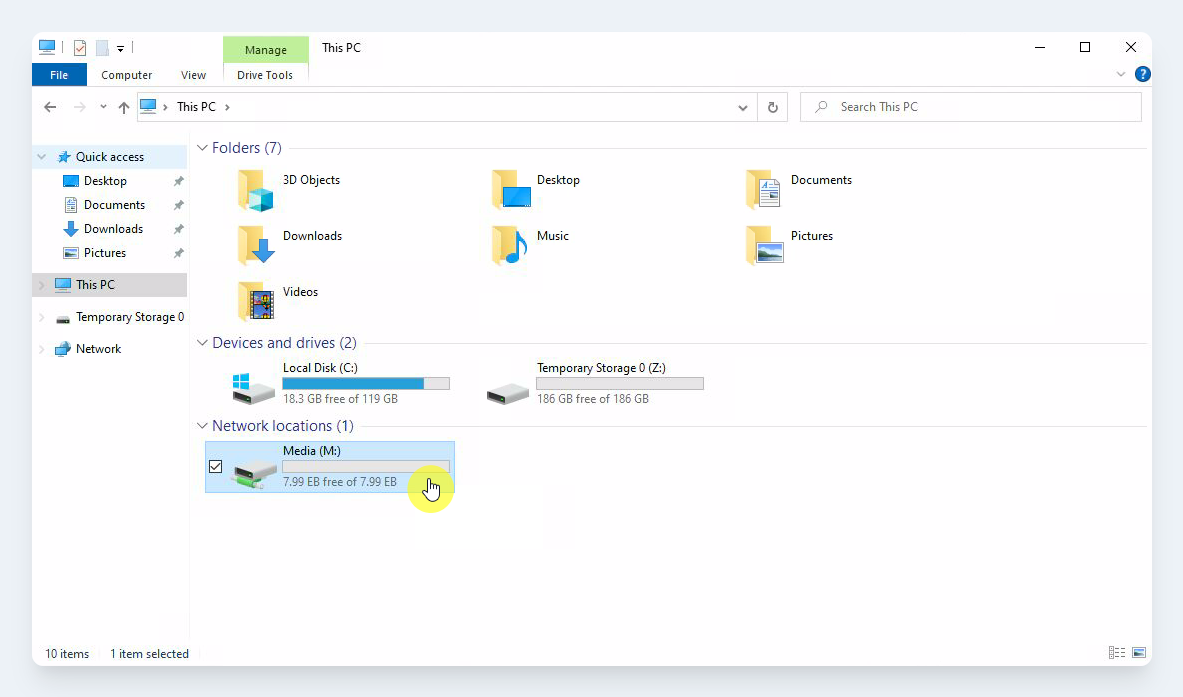
The This PCview -
To open a new view: Navigate to the
Filemenu, then select theOpen new windowoption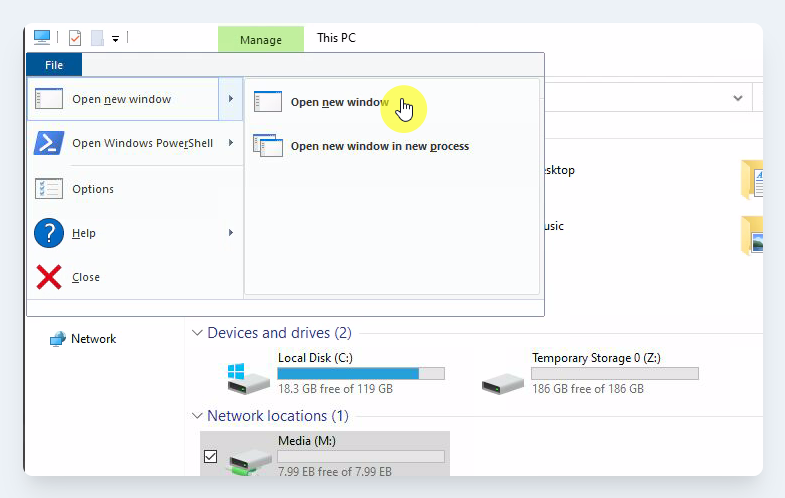
-
A new file explorer window has now been opened. Navigate to where your file is saved.
-
Copy the file or folder to the file explorer with the network drive open. You can do this by:
-
Dragging and dropping the file or folder onto the network drive file explorer
-
Copy and pasting the file or folder onto the network drive file explorer
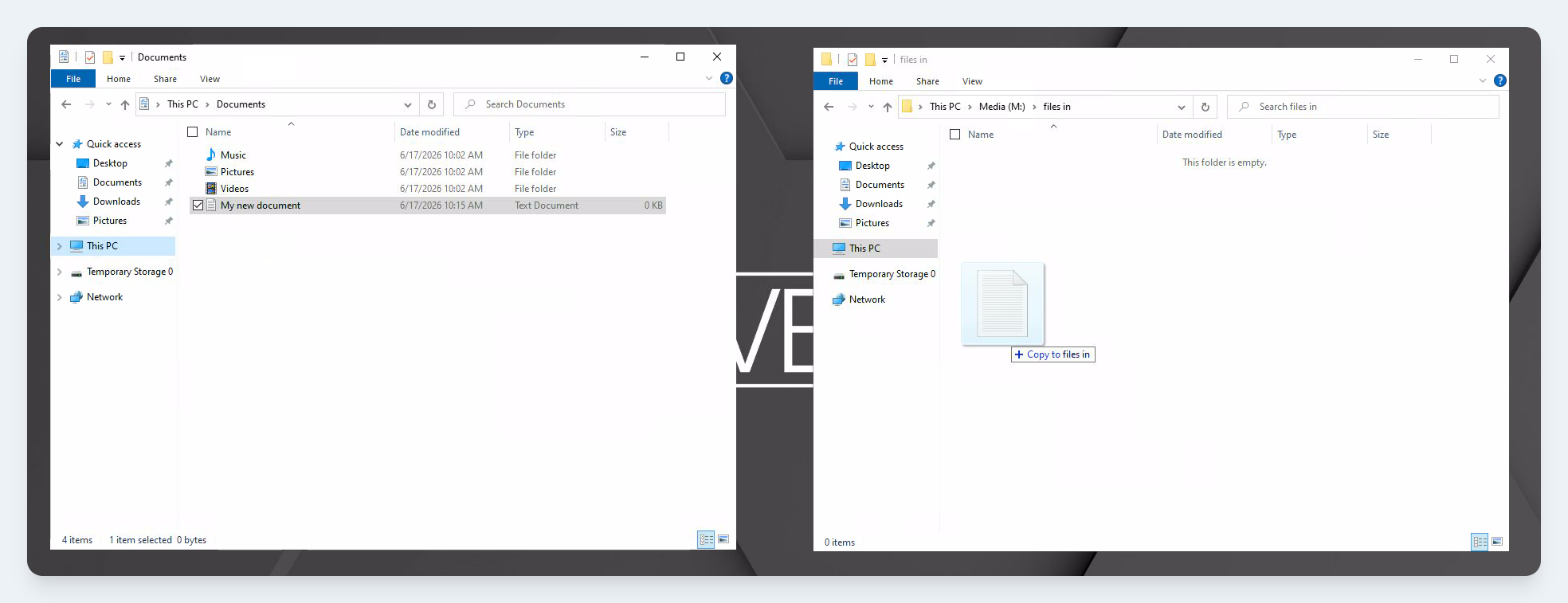
Dragging and dropping a file to the network drive
-
-
Once the file has been copied, it will shortly be visible in Amazon S3
Downloading media from Amazon S3
-
Open CyberDuck
-
Double click the S3 bookmark that we created previously:
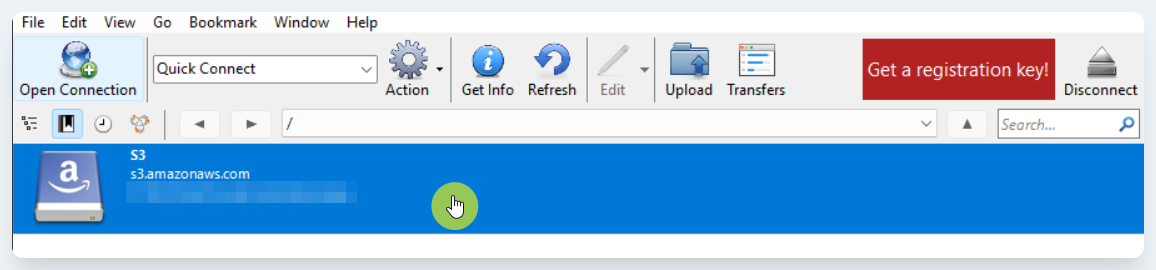
-
Navigate to the file you uploaded previously
-
Right-click the file and select
Download -
Once you do this, the
Transferwindow will appear. This displays the download status of the file or folder.